
File Naming & Folder Structure
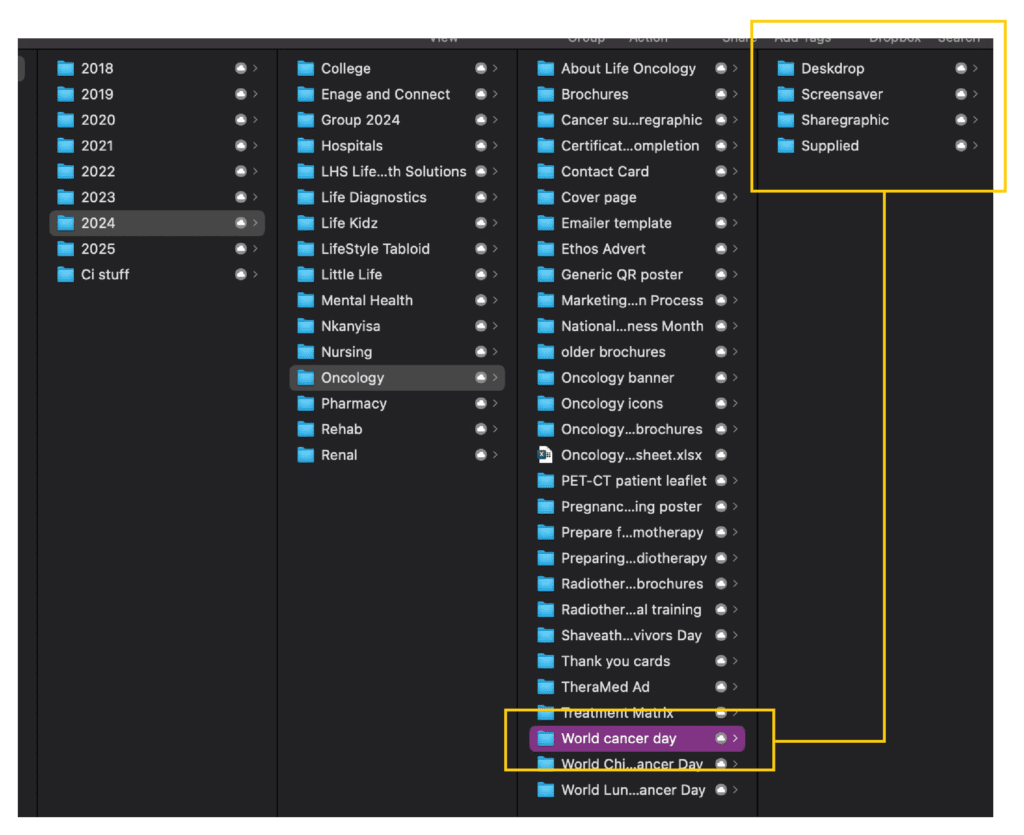
Please make sure all the collateral is organised in folders and sub-folders within the main task folder to avoid any confusion or using the wrong open files.
All PDFs, JPGs and PNGs need to have a corresponding open file per version.
An example of the folder structure is as follows, for example collateral for World Cancer Day:

Each sub-folder will hold the multiple versions for that item.
Each folder will have a Supplied and Images/Elements folder.
The Supplied folder will contain all the elements sent by the client to be used in the design, i.e. images, logos, or other elements.
The Images/Elements folder will contain all stock images, graphs, infographics used in the design.
This allows the designers to access the full project by only making the selected folder available offline, instead of searching for all the elements in separate folders.
The structure for the naming of files is as follows:
Client_Task Name_Document Size_MonthYear_Version Number
i.e. Oncology_Poster_A4_Jan2025_V1
This helps us to refer back to previous versions when clients want to make changes or repurpose artwork from another month/year. It is important to have the size of the document artboard in the file name to make it easier when checking items for printing.
Please make sure to save the files into the correct folder, especially for Life Healthcare, where they have sub-sections for Oncology, Rehab, Renal, etc. The department can usually be found in the brief.
For each version number there should be an open file and it’s corresponding PDF, JPG, or PNG files.
For internal changes
For internal changes (from the Operations Manager or another designer) you can save over the latest file.
For external changes
For external changes from the client, remember to save one version up (do not save over the original artwork as we might need to revert back to it).